Arakis Academy Software Guide
A starter guide for learners, parents, teachers and schools. This page describes only what is in the Academy today.
Getting started
Arakis Academy is the learning app from Arakis Space Systems. You can use it in a browser or install it on a phone. Create a free account, pick a level, open a book and enrolll. The first two chapters of each paid book — including their tests and book pages — are free. A yearly plan unlocks the rest.
Create your account
- Open Sign up.
- Enter your name, email, password (at least 8 characters) and confirm the password.
- If you are signing up as a learner, choose your age: 18 or older or 13–17 (guardian consent needed for some features). Teacher and school accounts are for adults (18 or older).
- Choose your country.
- Under I am signing up as, choose Learner, Teacher or School.
- Tap Sign up.
Under 13? Ask your teacher or school to create your account. They can add you with a username, so you do not need your own email.
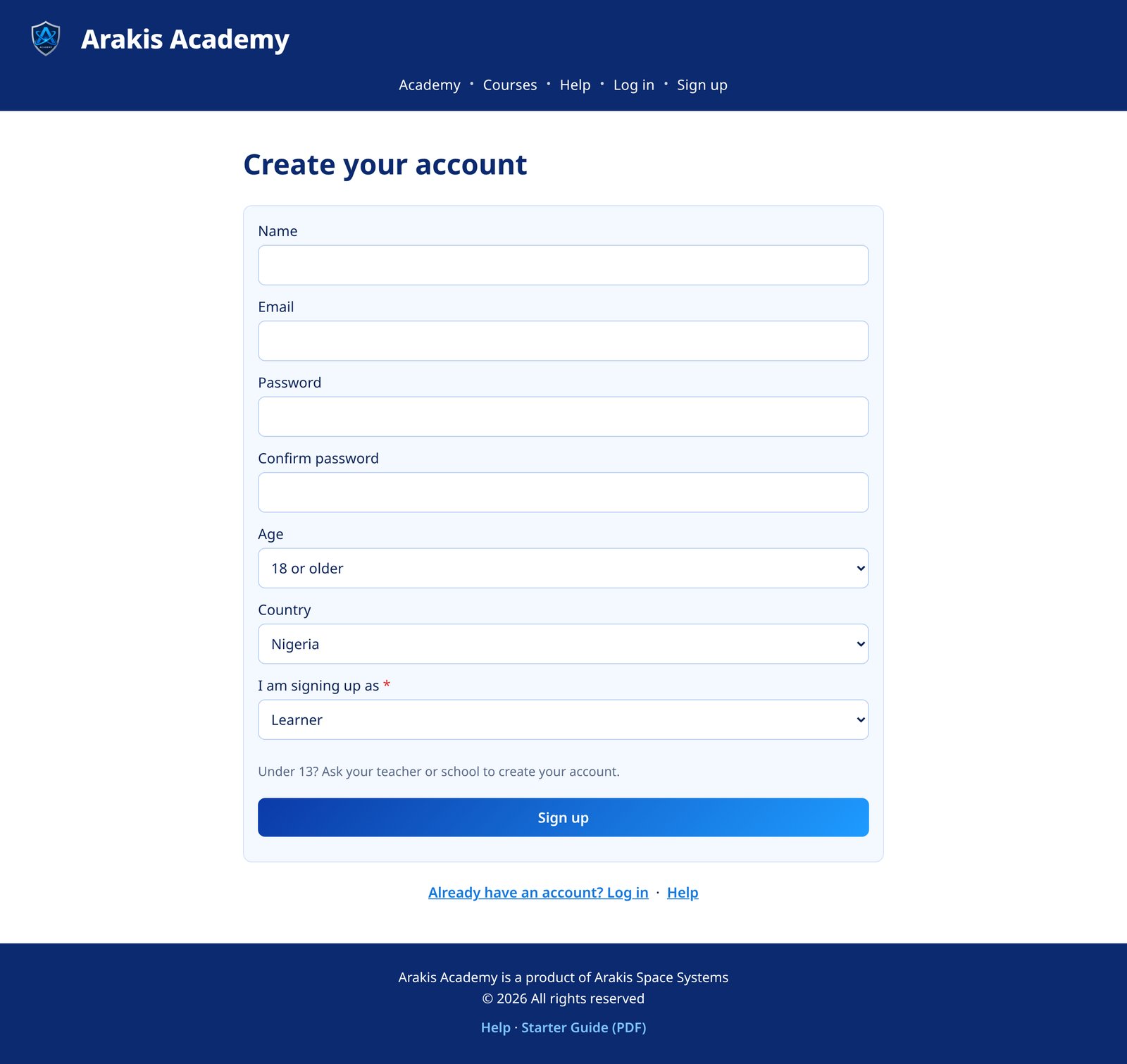
If you choose School
A School details section appears. You will be the school's account owner. Fill in:
- School name
- School address (street and number)
- State (or choose Outside Nigeria, then enter the state or region, country, and local area / district)
- LGA (after you choose a Nigerian state)
- Year of establishment
- Contact person name, Contact person role (Owner / Proprietor, Principal, or Other) and Contact phone
After you sign up you land on your school page, with a message that the school account is ready.
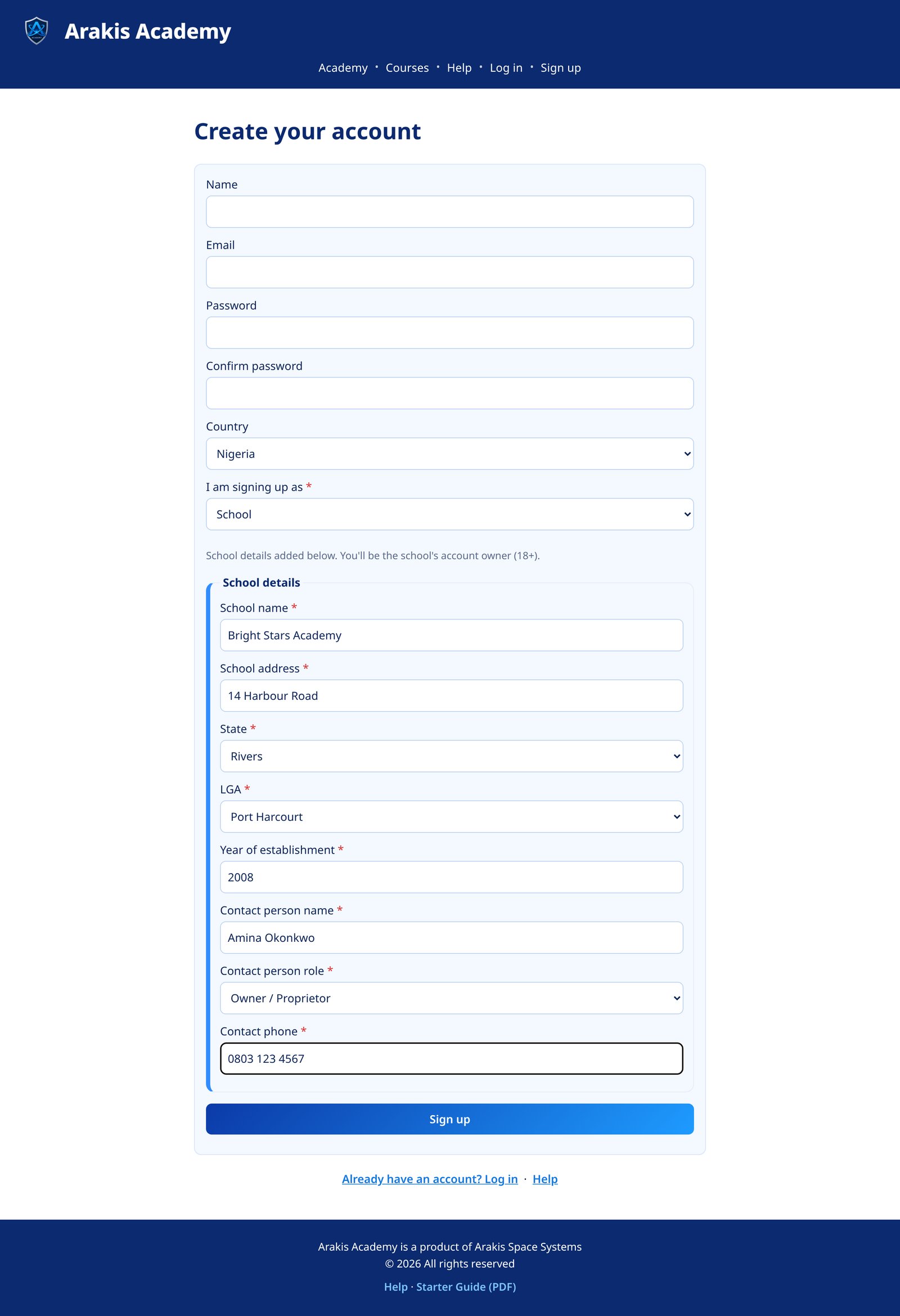
If you choose Teacher
A Teaching details section appears. Enter your school's name, or the School ID (optional, to ask to join), optional subjects taught, and your phone. The School ID looks like ARA-XXXXXX and is shown on the school owner's school page. Invited by email? Use the link in the email instead.
Teacher accounts start as Awaiting approval. You can learn as usual; classes open once your school or the Arakis Academy team approves you.
Log in
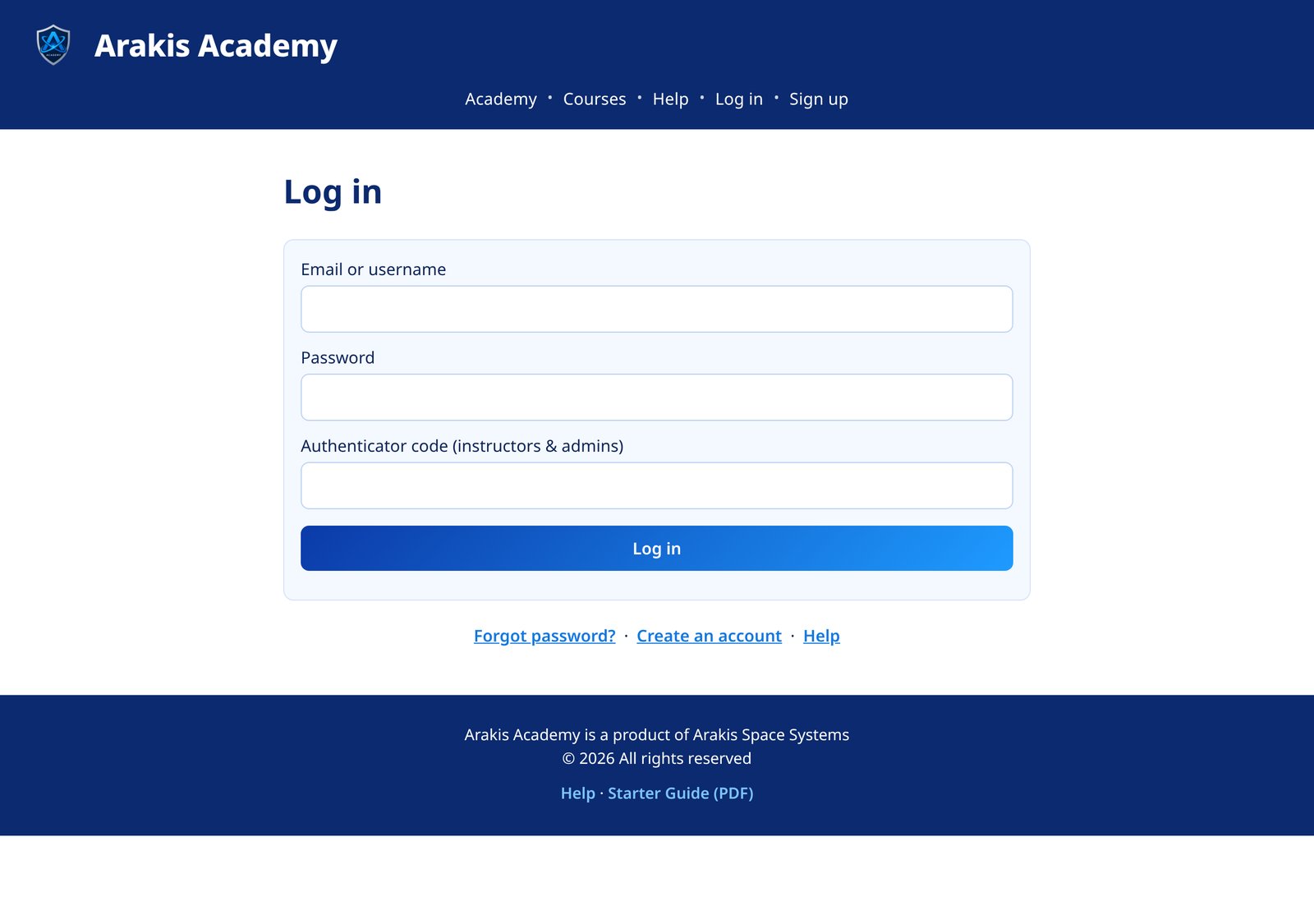
- Open Log in.
- Enter your Email or username and Password.
- Leave Authenticator code (instructors & admins) blank unless you have been asked to use an authenticator app.
- Tap Log in.
After a successful login you are taken to the right home for your role:
- A school owner, or a parent who owns a family account, goes to the school or family page.
- A teacher (including one still waiting for a school to approve a join request) goes to My classes.
- Everyone else goes to My dashboard.
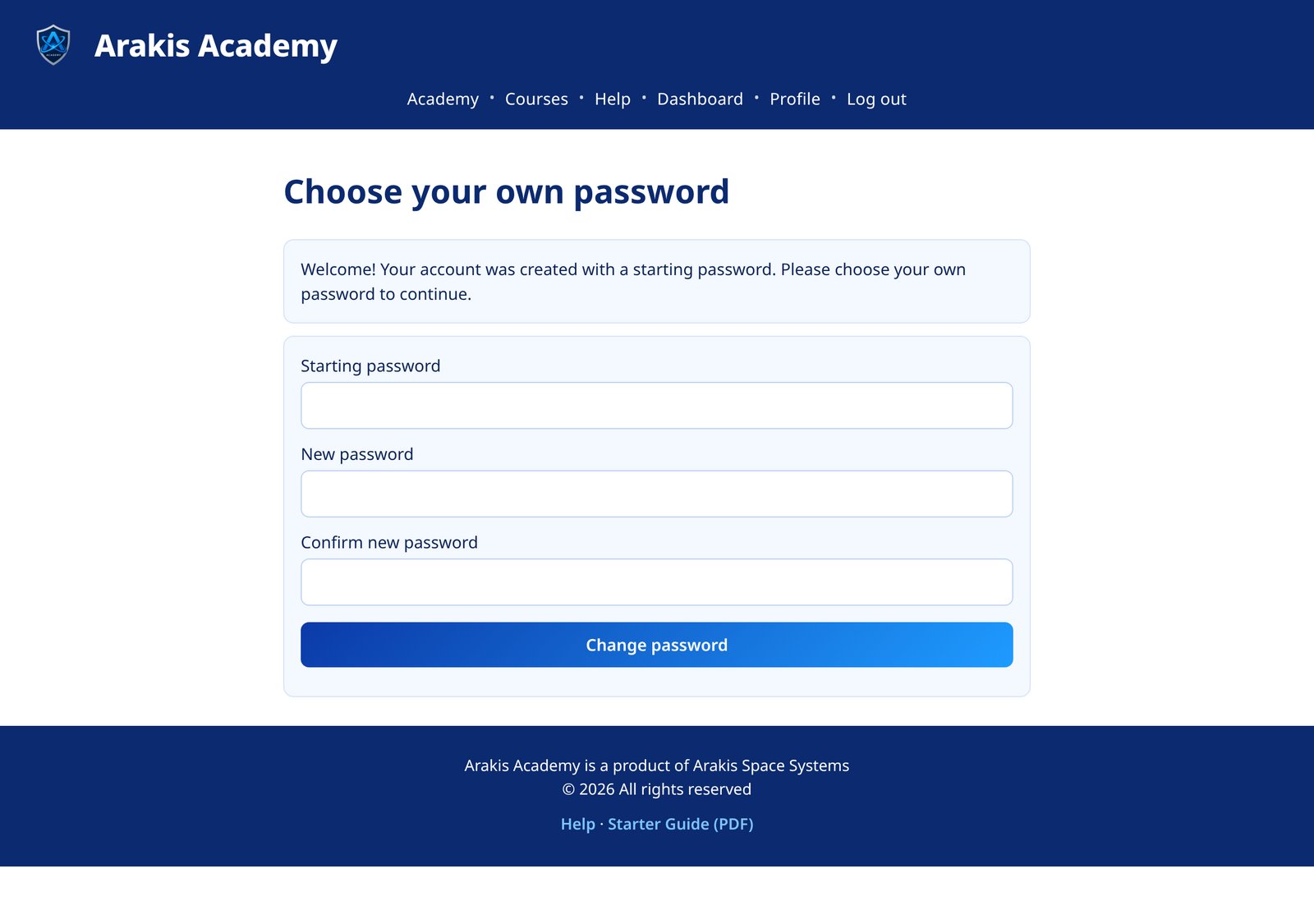
If your school or parent created your account with a starting password, you will be asked to Choose your own password before you can continue.
Forgot password? is under the log-in form. See Account and password.
Learners
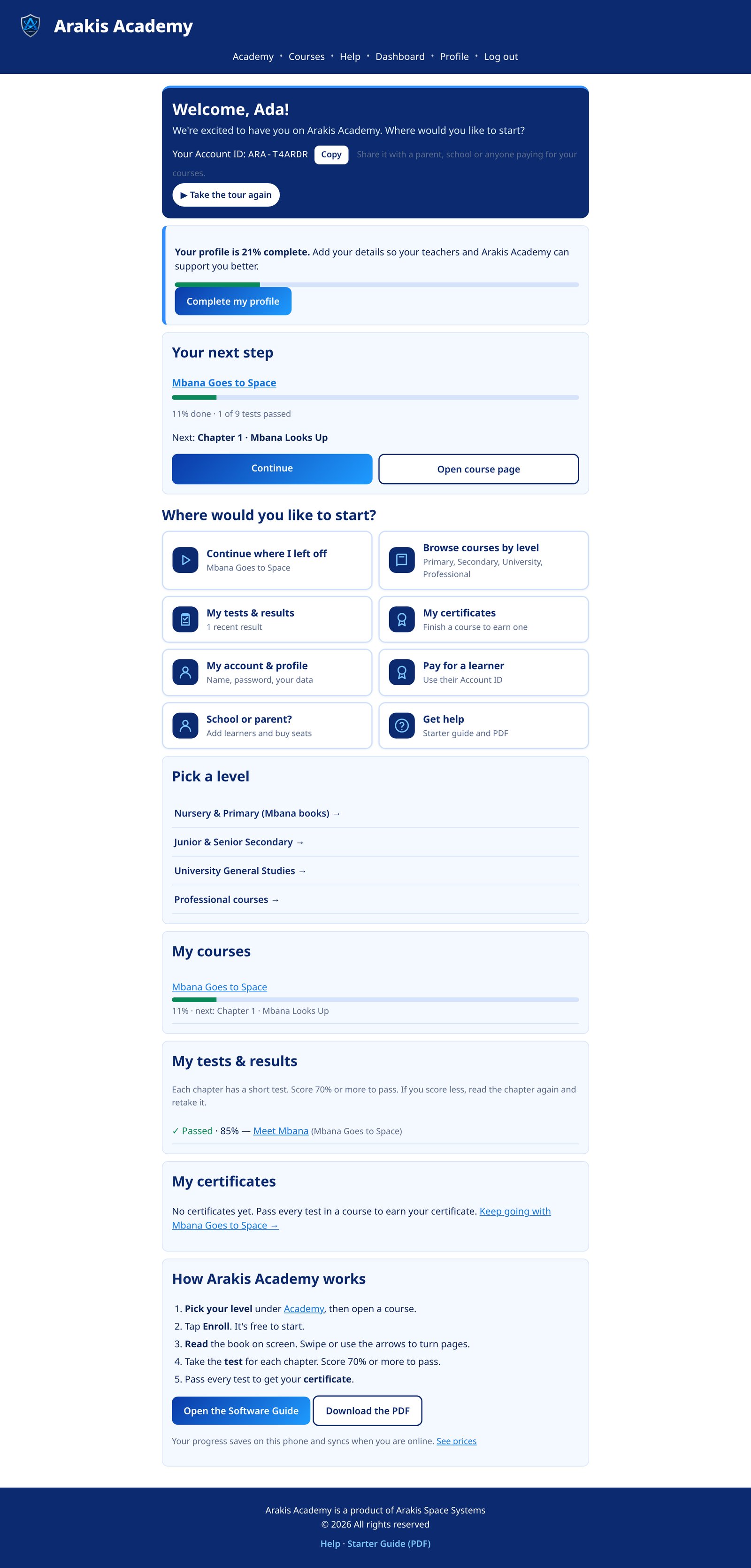
Your dashboard is your home base. The welcome line says Welcome, [your first name]! then: We're excited to have you on Arakis Academy. Where would you like to start?
Your Account ID (like ARA-XXXXXX) is on the dashboard and on your profile. Share it with a parent, school or anyone paying for your courses. Use the copy button next to it if you want to send it.
The guided tour
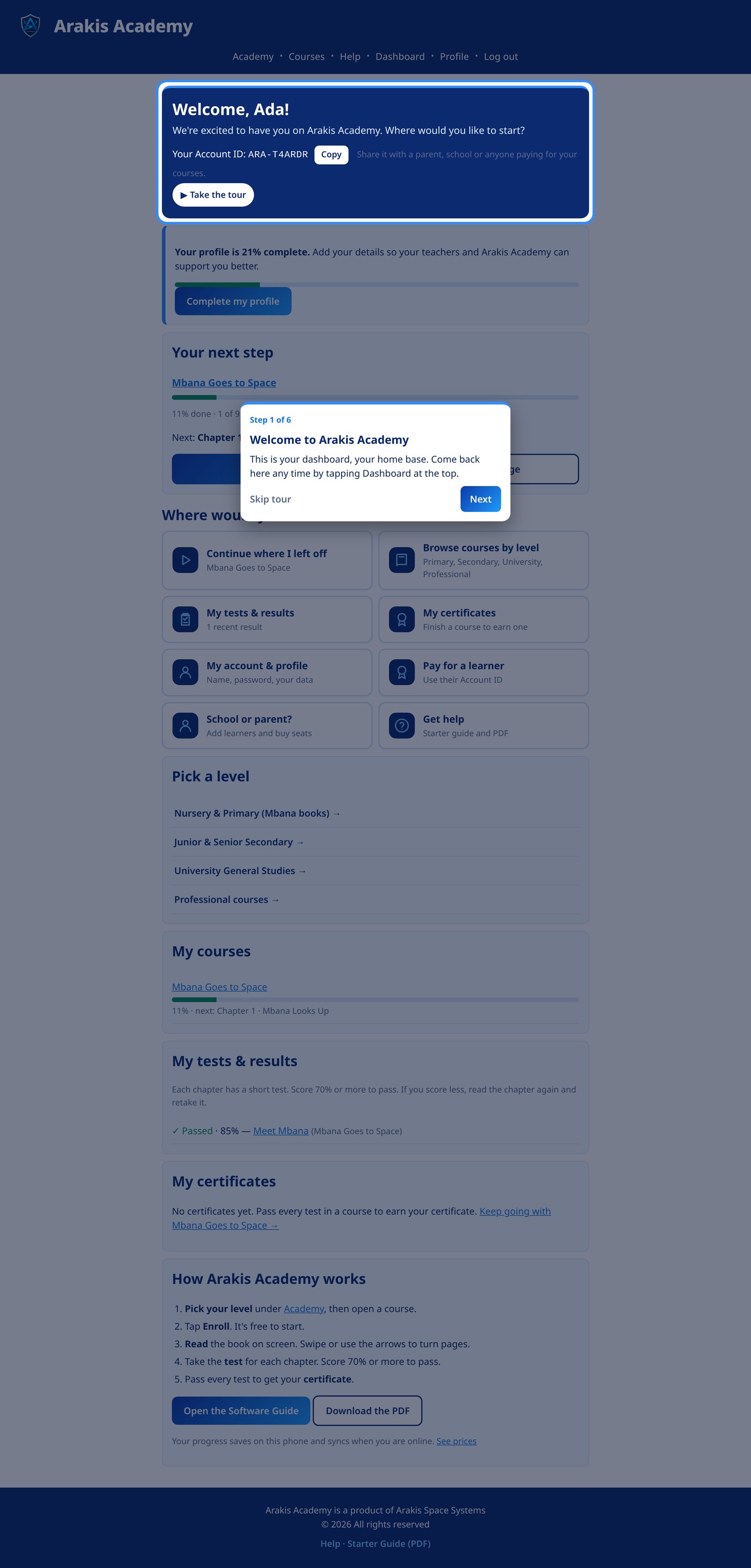
The first time you open the dashboard, a 6-step tour points out the important parts. Use Next, Back, Skip tour, or press Esc. When you have finished or skipped it, it will not start itself again. Tap Take the tour again any time to replay it. The last step points to Get help, which opens this guide.
Where to start
The choice cards take you to:
- Continue where I left off — back to your current course, or to start one
- Browse courses by level — Primary, Secondary, University and Professional under Academy
- My tests & results and My certificates — further down the same page
- My account & profile — name, password and your data
- Pay for a learner — pay with someone's Account ID (see Payments)
- School or parent? — set up a school or family account, if you do not already have one
- Get help — this guide
Your next step shows the course you are on, your progress, how many tests you have passed, and a Continue button. If you have not started yet, it tells you to pick your level, open a course and tap Enroll. It is free to start.
Books and the page-flip reader
- Pick your level under Academy, then open a course (or use Courses).
- Tap Enroll. On a paid book this is shown as Enroll free · first 2 chapters. Enrolling is always free.
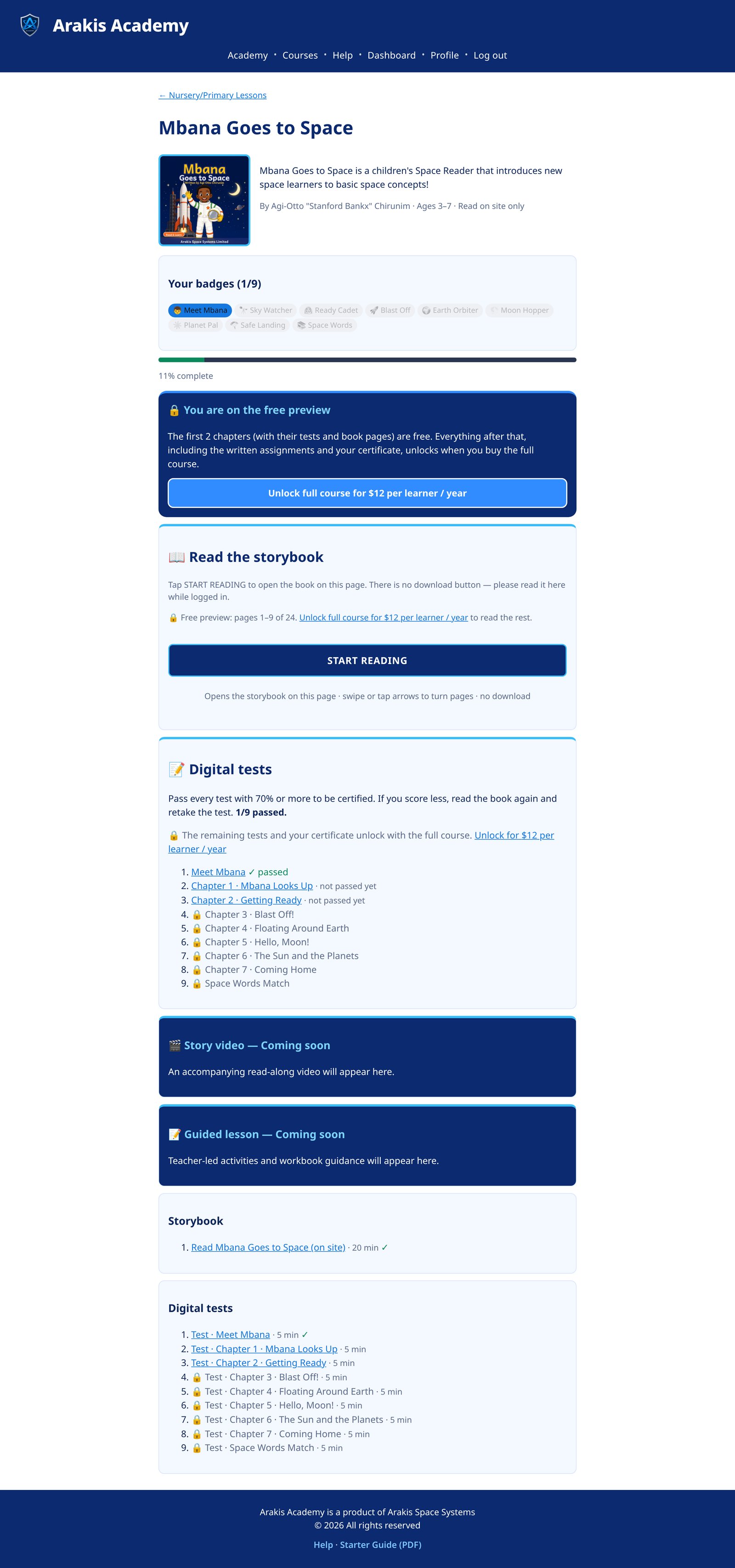
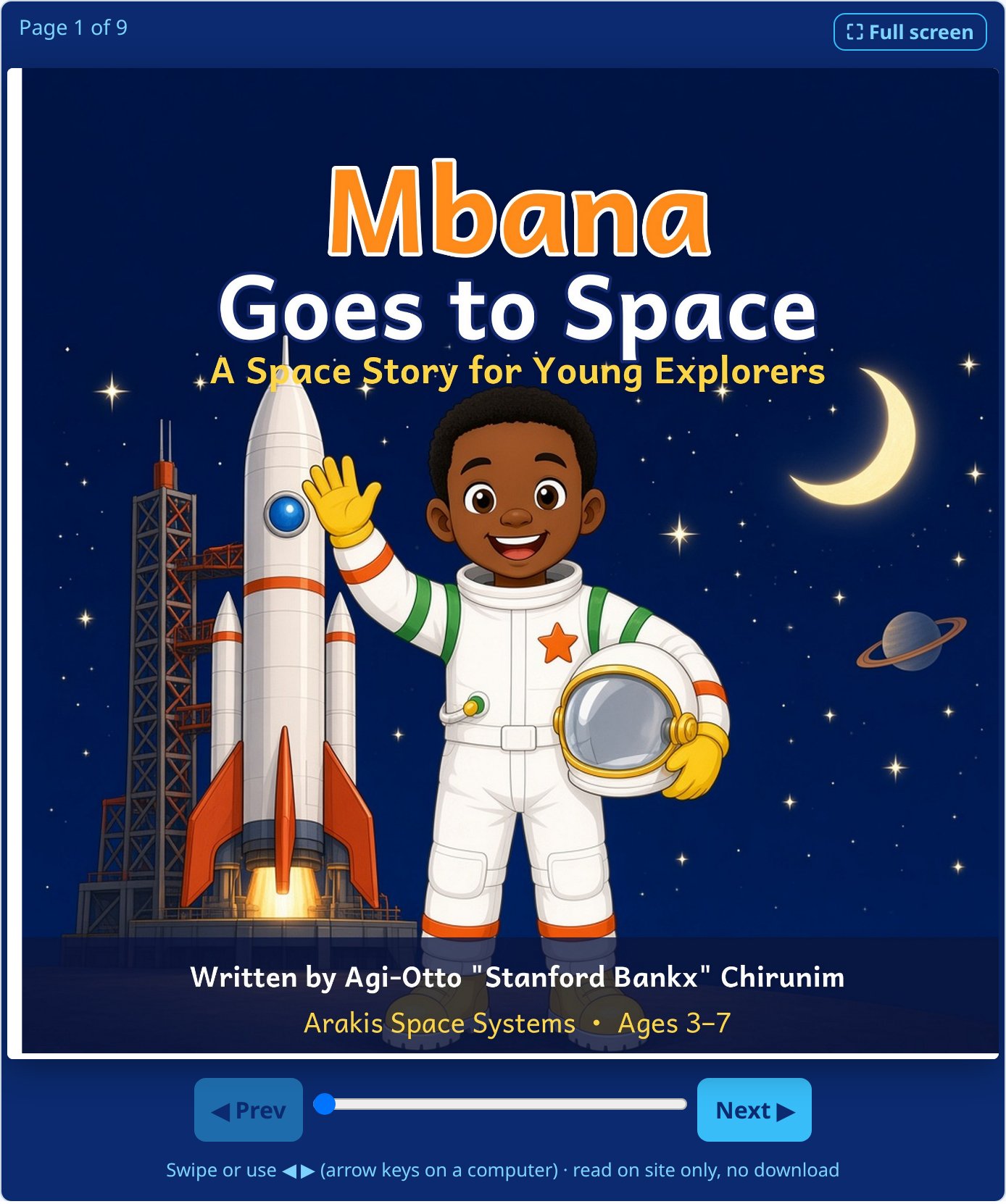
- On the course page, tap START READING to open the book on the same page. There is no download button — read it here while logged in.
- Read on screen. Swipe, tap ◀ Prev / Next ▶, or use the arrow keys to turn pages. You can also use full screen.
- The free preview covers the first two chapters and their pages. When you reach the end of the preview, the reader asks you to unlock the full course to keep reading.
Chapter and unit tests
Each chapter has a short test. Score 70% or more to pass. If you score less, read the chapter again and retake it. Your latest results appear under My tests & results. Written assignments, where a course has them, come after the tests and are part of the full course.
Certificates
Pass every test in a course to earn its certificate. Certificates are listed on your dashboard. If the course page asks you to verify your email, do that there so the certificate can be sent to you.
Your profile
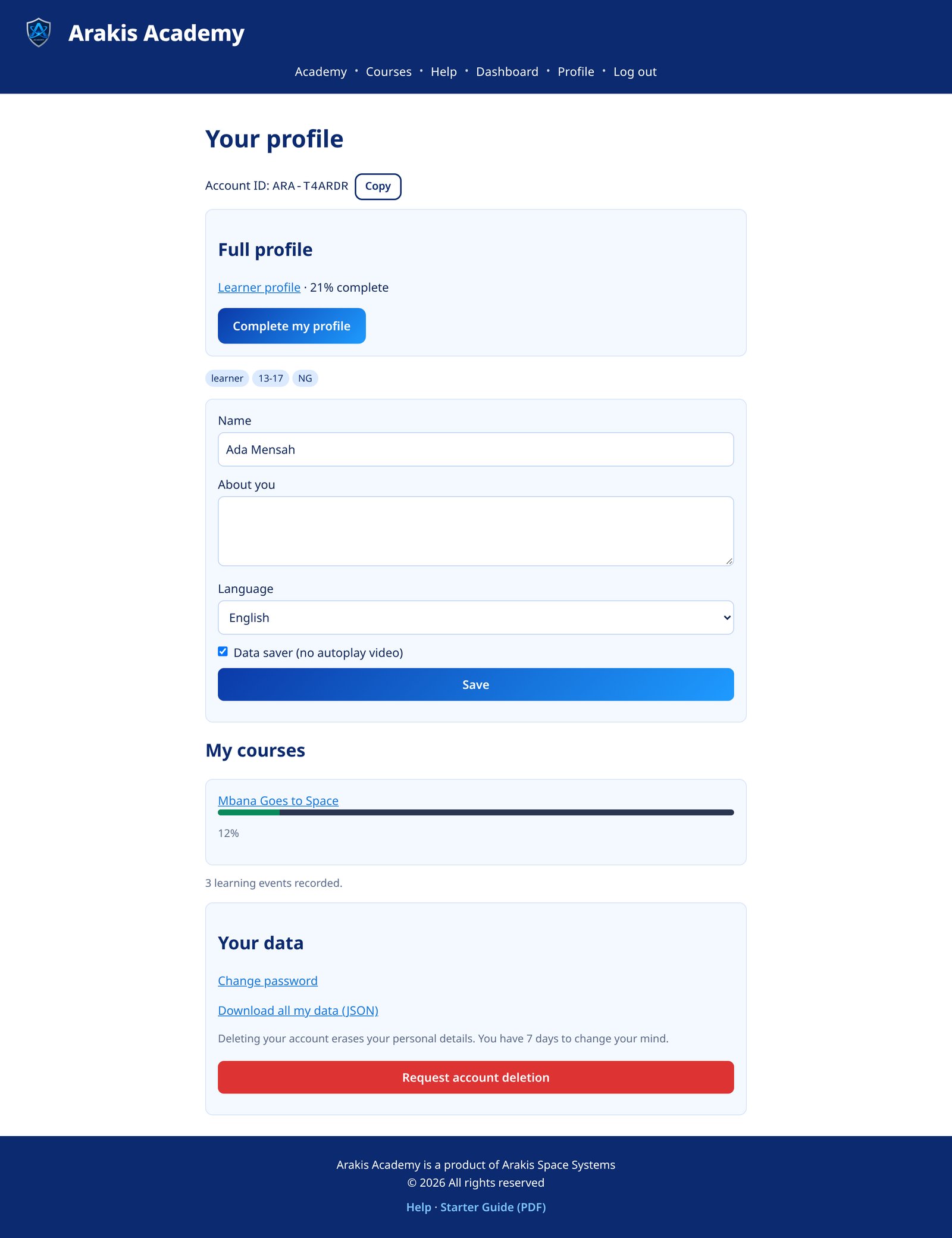
Open My account & profile or Profile in the header. You will see your Account ID, a full profile to complete (so teachers and Arakis Academy can support you better), your name, about you, language, a data-saver option, your courses, and Your data (change password, download your data, or request account deletion). A nudge on the dashboard appears until the profile is 100% complete.
Parents
A parent or guardian sets up a family account, adds children, can buy yearly seats, and can follow their progress. You do not sign up as “Parent” on the first form. Instead:
- Create your own account as a Learner (you must be 18 or older to run a family account), or use Create my account from the school and parent page. That page explains: parent or guardian? Keep Learner; next you will set up your family and add your children.
- Open School & parent account (also linked from the dashboard as School or parent?).
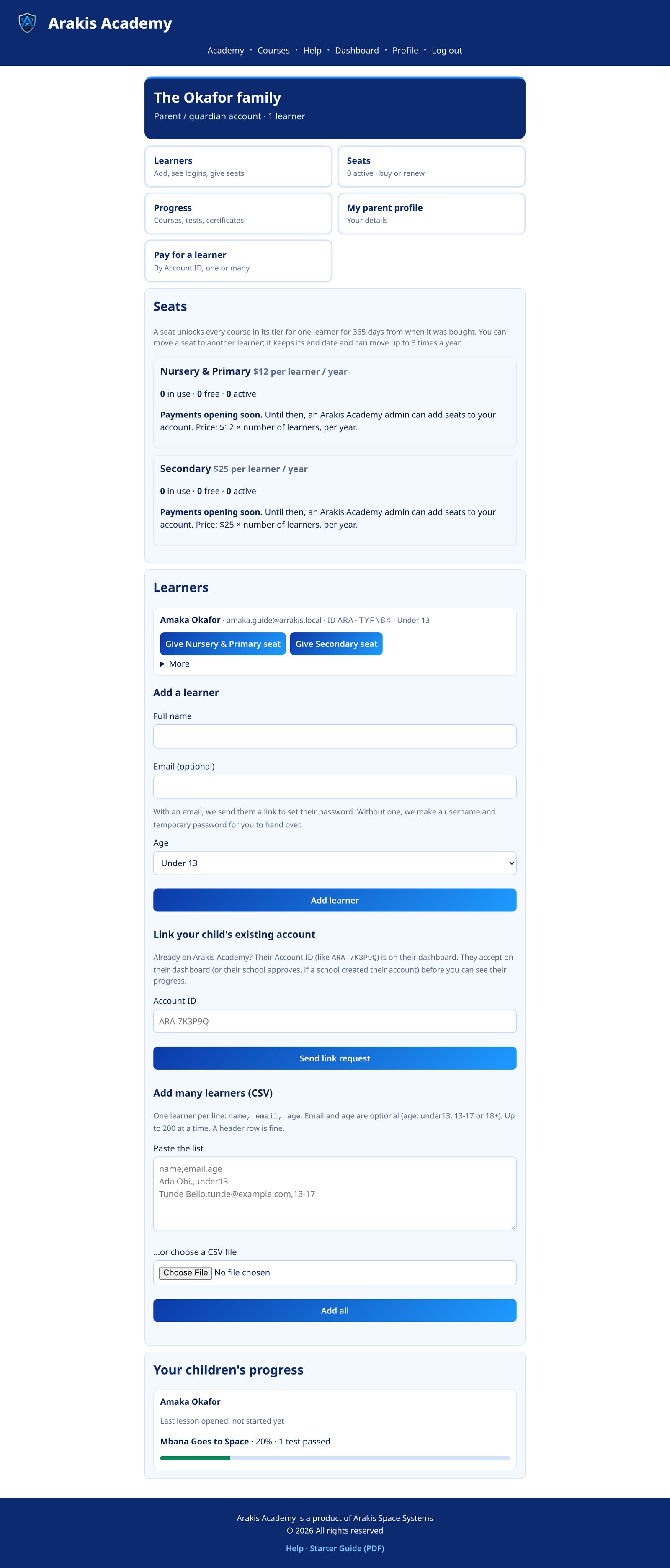
- Choose My family (parent / guardian), enter a name (for example, The Okafor family) and country, then tap Create.
You become the owner. After that you can:
- Add a learner with full name, optional email, and age (Under 13, 13–17, or 18 or older). With an email, we send them a link to set their password. Without one, we make a username and temporary password for you to hand over — shown only once, with a Download logins (CSV) button. Each child chooses their own password the first time they log in.
- Link your child's existing account with their Account ID. They accept on their dashboard before you can see their progress. If a school created their account, the school also approves the link.
- Add many learners (CSV): one learner per line,
name, email, age. Email and age are optional. Up to 200 at a time. A header row is fine. You can paste the list or choose a CSV file. - Buy seats and give one to each learner (see Payments).
- Follow Your children's progress: last lesson opened, course progress, tests passed and completed courses.
- Complete My parent profile.
Teachers
Sign up as a Teacher (see Getting started). Until you are approved, My classes shows Awaiting approval: you can explore the courses as a learner, but you cannot create classes or see learners. Your dashboard also shows: Teacher account: awaiting approval.
You can join a school in two ways:
- Enter the school's School ID when you sign up (the owner finds it on their school page). They approve your request under Teachers asking to join.
- The school owner adds you by name and email. Accept the invitation on your dashboard.
If you are approved as a teacher but not yet at a school, My classes tells you: to run classes, ask a school to add you, or enter its School ID. Running your own school? Set up a school account. An approved teacher who is not on a school cannot create classes until a school adds them.
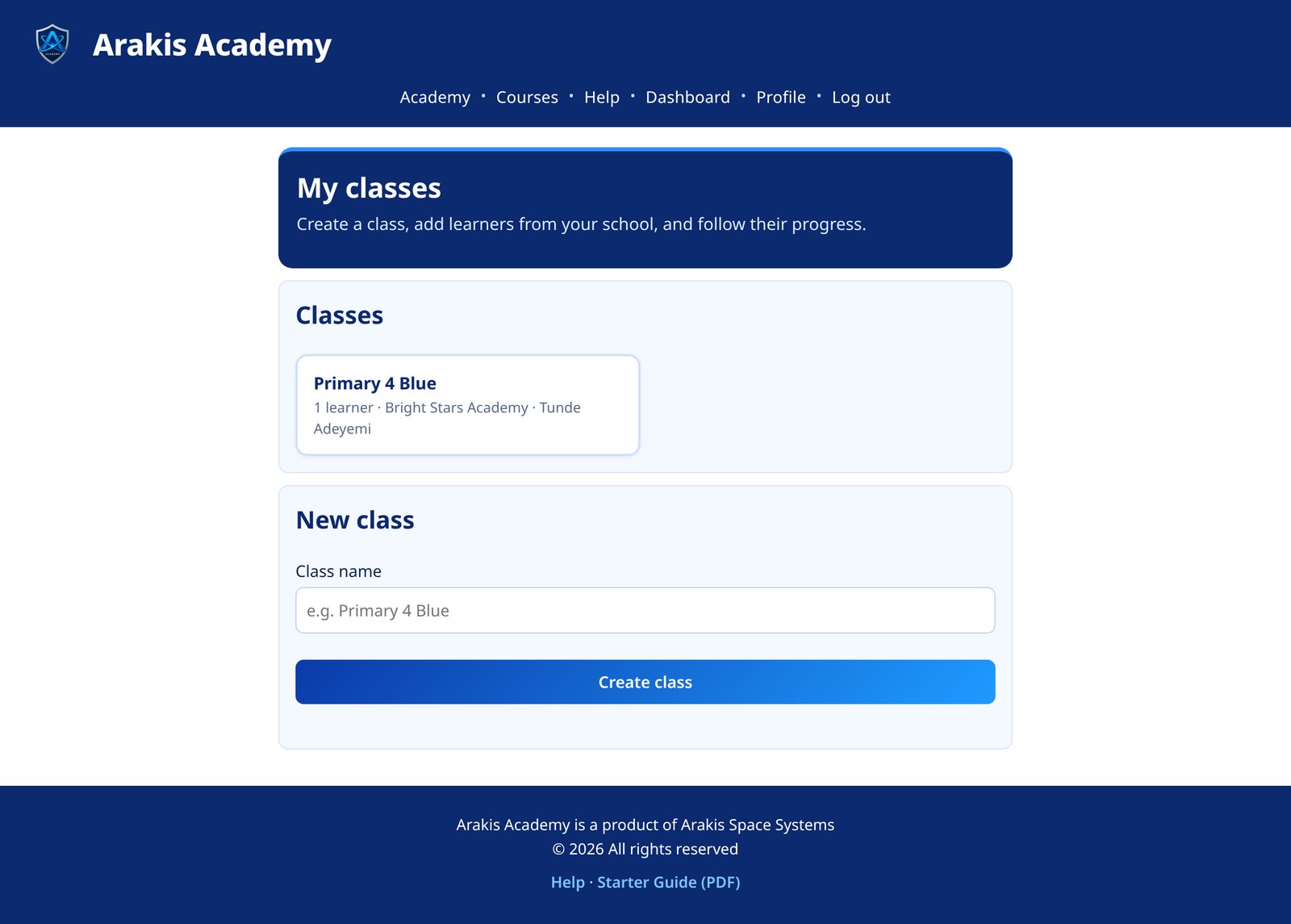
Once you are an active teacher at a school, My classes lets you:
- See your classes and open one
- Create a New class (for example, Primary 4 Blue)
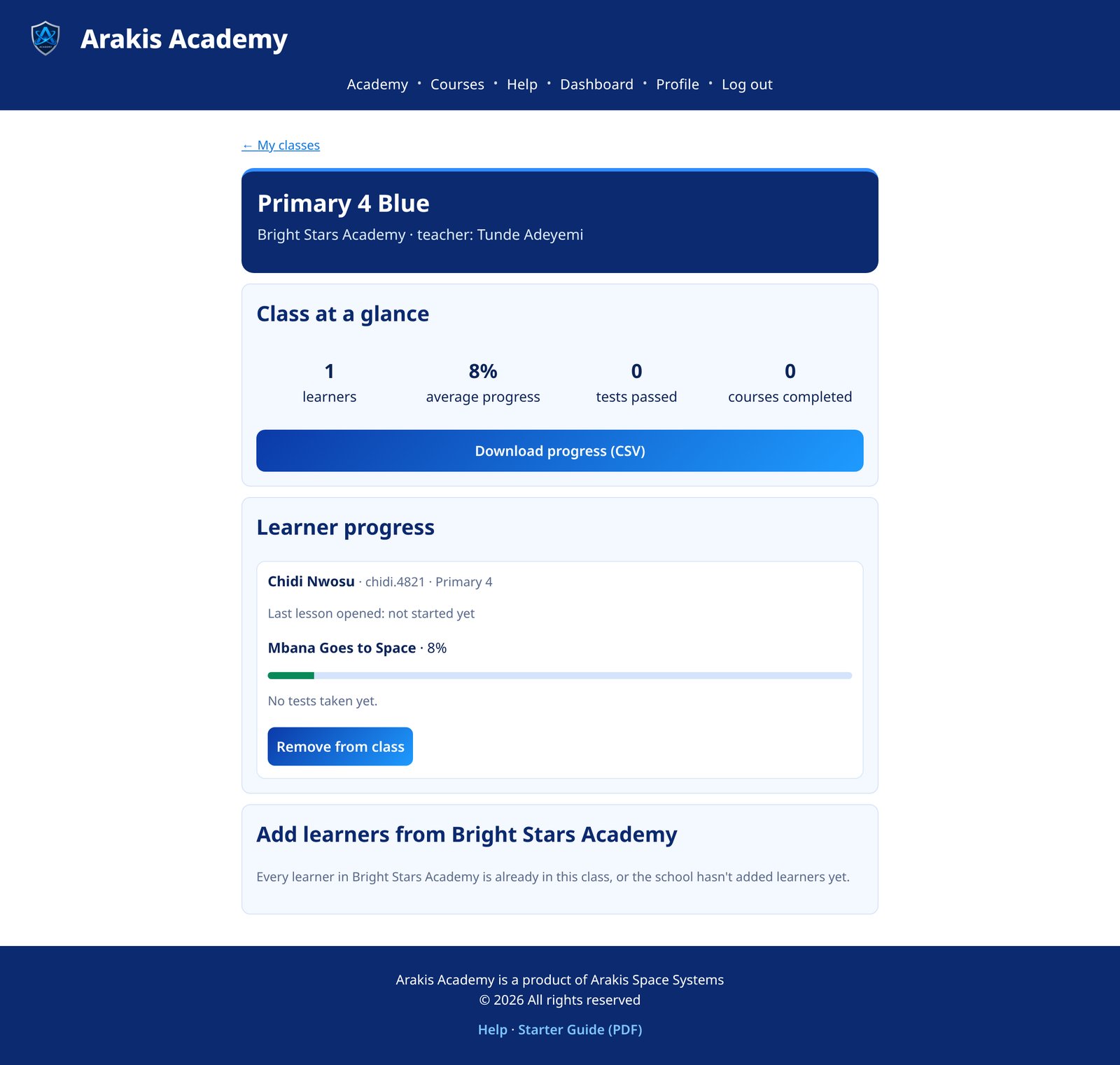
- Inside a class: see progress at a glance (learners, average progress, tests passed, courses completed), Download progress (CSV), view each learner's courses, test passes and best scores, and Add learners from your school (you can only add learners the school has already added)
Teachers see class, school and learning-needs details for their learners, not contact details. School owners can also open My classes and manage the school from the school page.
Schools
Sign up as School and complete the school details (see Getting started). You land on your school page as the owner. If you already have a personal account, you can also open School & parent account and create a school from there (one organisation per owner).
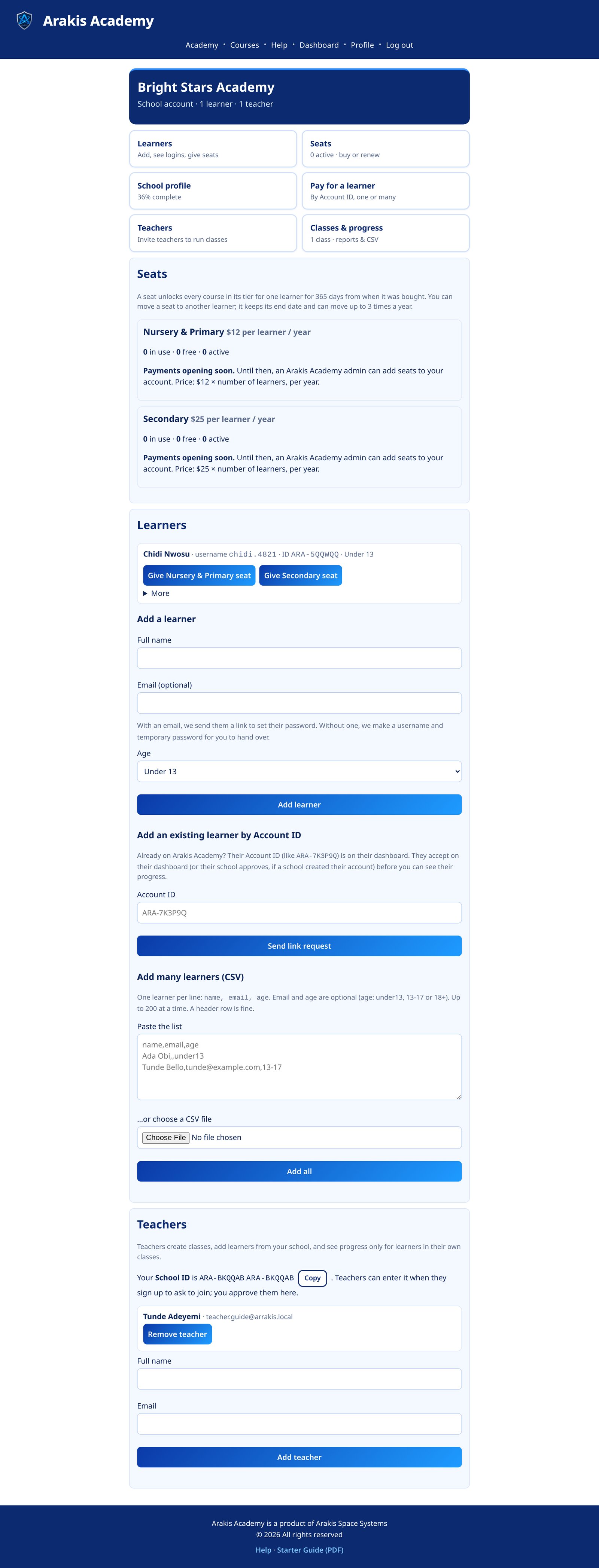
On the school page you can:
- Read your School ID (the owner's Account ID) and share it with teachers so they can ask to join. You approve or decline them under Teachers asking to join.
- Add a learner one by one, or Add many learners (CSV), the same way parents do. Without an email, write down or download the username and temporary password — they are shown only once.
- Add an existing learner by Account ID. They accept on their dashboard before you can see their progress.
- Give or take back a seat for Nursery & Primary or Secondary, and buy or renew seats (see Payments).
- Add teacher by full name and email, or approve teachers who asked to join with your School ID. Teachers create classes, add learners from your school, and see progress only for learners in their own classes.
- Open Classes & progress (which goes to My classes) for reports and CSV.
- Complete the School profile.
- Approve or decline Parent link requests when a parent asks to link a learner your school created. Approve only if you know they are the learner's parent or guardian.
- For username learners your school created, open More and use Make a new temporary password if they are locked out. Learners with an email use Forgot password? instead.
Payments
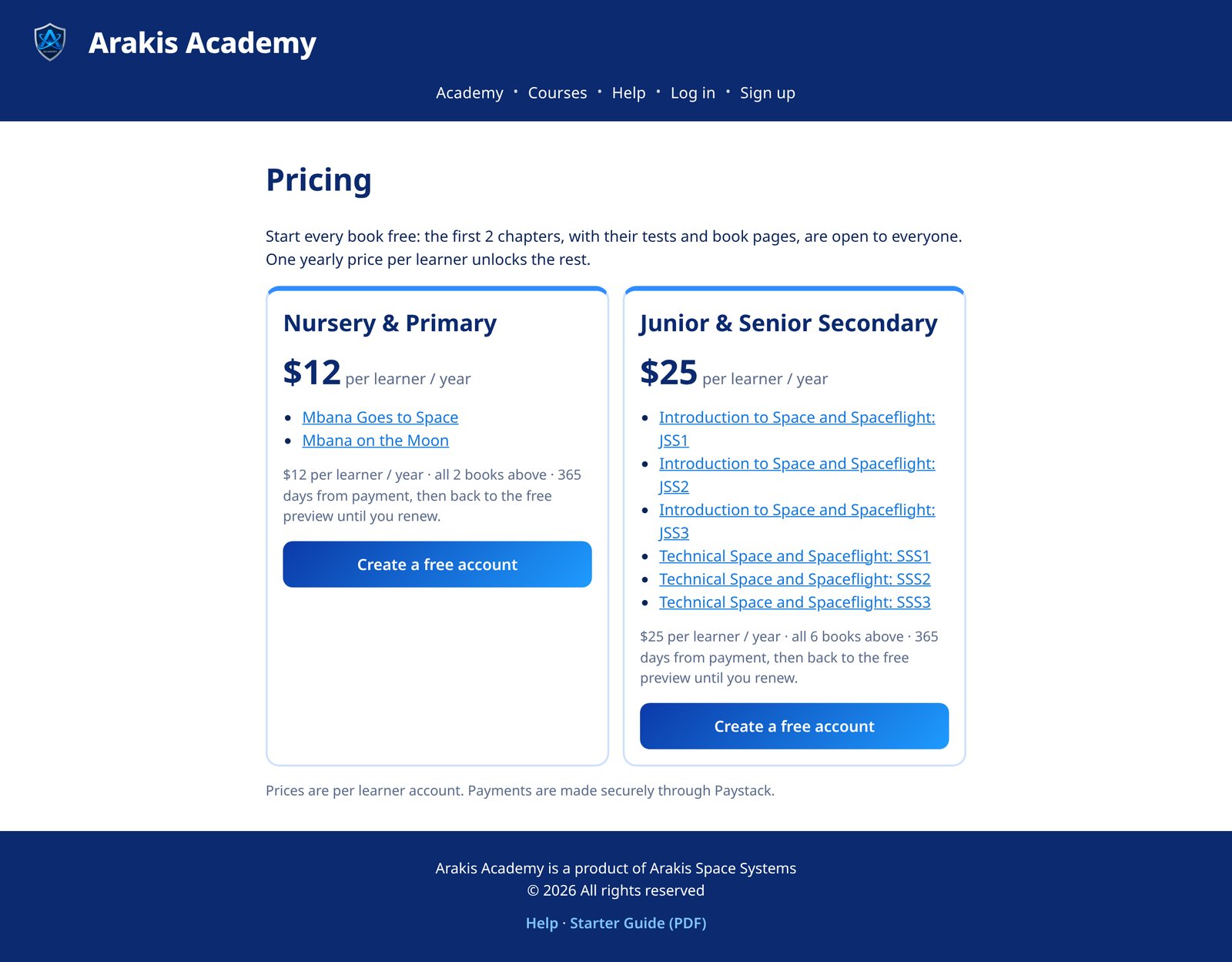
Start every book free: the first 2 chapters, with their tests and book pages, are open to everyone. One yearly price per learner unlocks the rest. Prices are per learner account, for 365 days from payment. If the learner already has access, paying adds another year on top. When the year ends, the books go back to the free preview until you renew.
- Nursery & Primary — $12 per learner / year (Mbana Goes to Space and Mbana on the Moon)
- Junior & Senior Secondary — $25 per learner / year (Introduction to Space and Spaceflight JSS1–3 and Technical Space and Spaceflight SSS1–3)
See the current list, including which books sit on each plan, on Pricing. A learner can pay for themselves from a course page (Unlock full course) or from checkout. Schools and parents buy seats they then assign. Anyone with an account can Pay for a learner with an Account ID.
Pay for someone, or for many learners
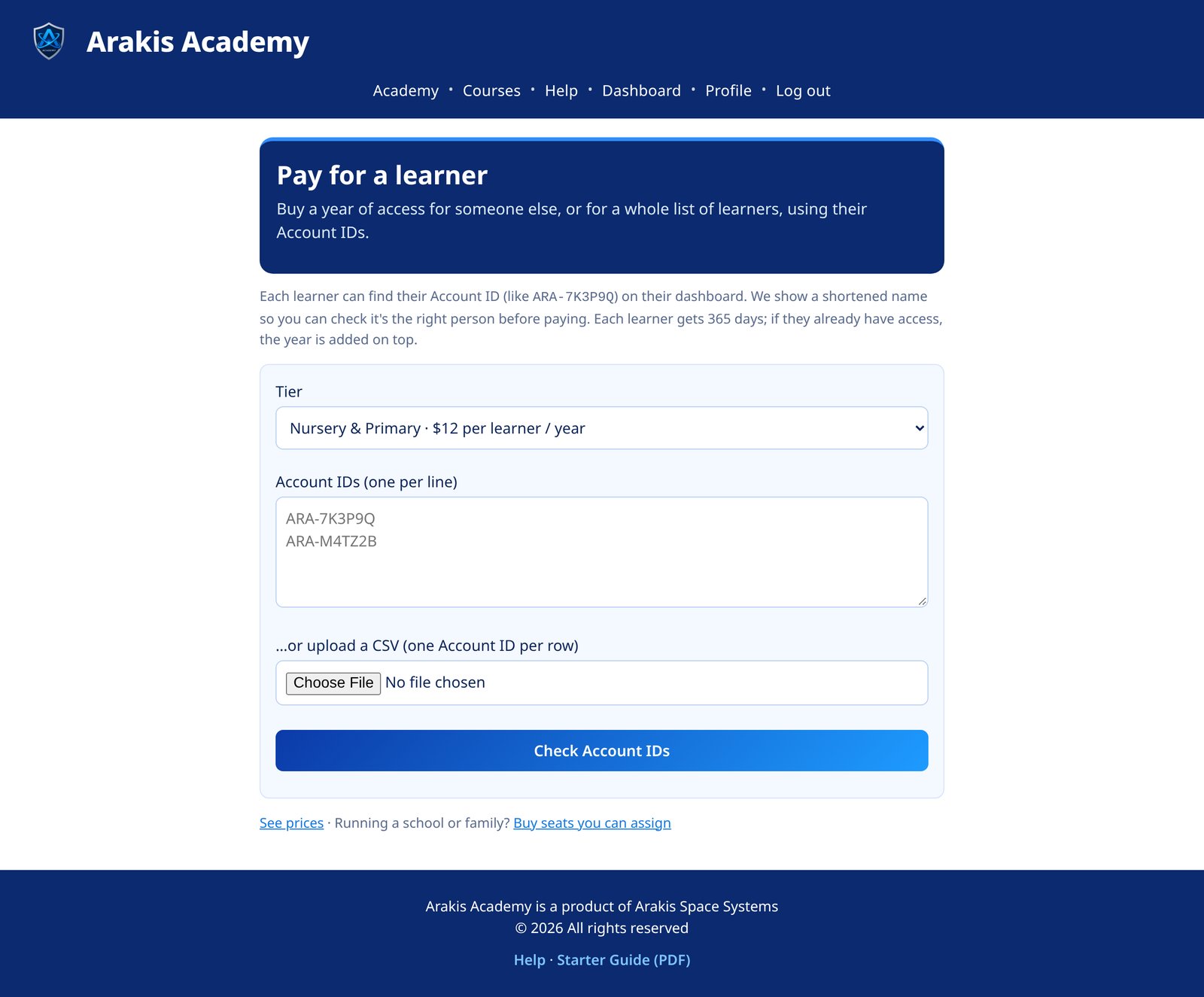
- Open Pay for a learner (also a card on the dashboard and the school page).
- Choose the tier.
- Paste Account IDs, one per line, or upload a CSV (one Account ID per row).
- Tap Check Account IDs. We show a shortened name so you can check it is the right person. Duplicates are counted once. Invalid or unknown IDs are marked.
- If payments are on, confirm with Pay [total] with Paystack. Checkout is by card, bank transfer or USSD. We never see your card details.
Seats for a school or family
A seat unlocks every course in its tier for one learner for 365 days from when it was bought. You can move a seat to another learner; it keeps its end date and can move up to 3 times a year. Use Give [tier] seat or Take back [tier] seat on each learner. When payments are on, use Buy seats with Paystack or Renew for another year.
If you see “Payments opening soon”
When online payments are not yet switched on (or cannot be charged in the currency that is set), the site shows Payments opening soon. Nothing is charged. You can still check Account IDs, keep learning with the free first two chapters, and — for schools and parents — ask Arakis Academy to add seats. The same message appears on checkout and on the school or family seats section.
Account and password
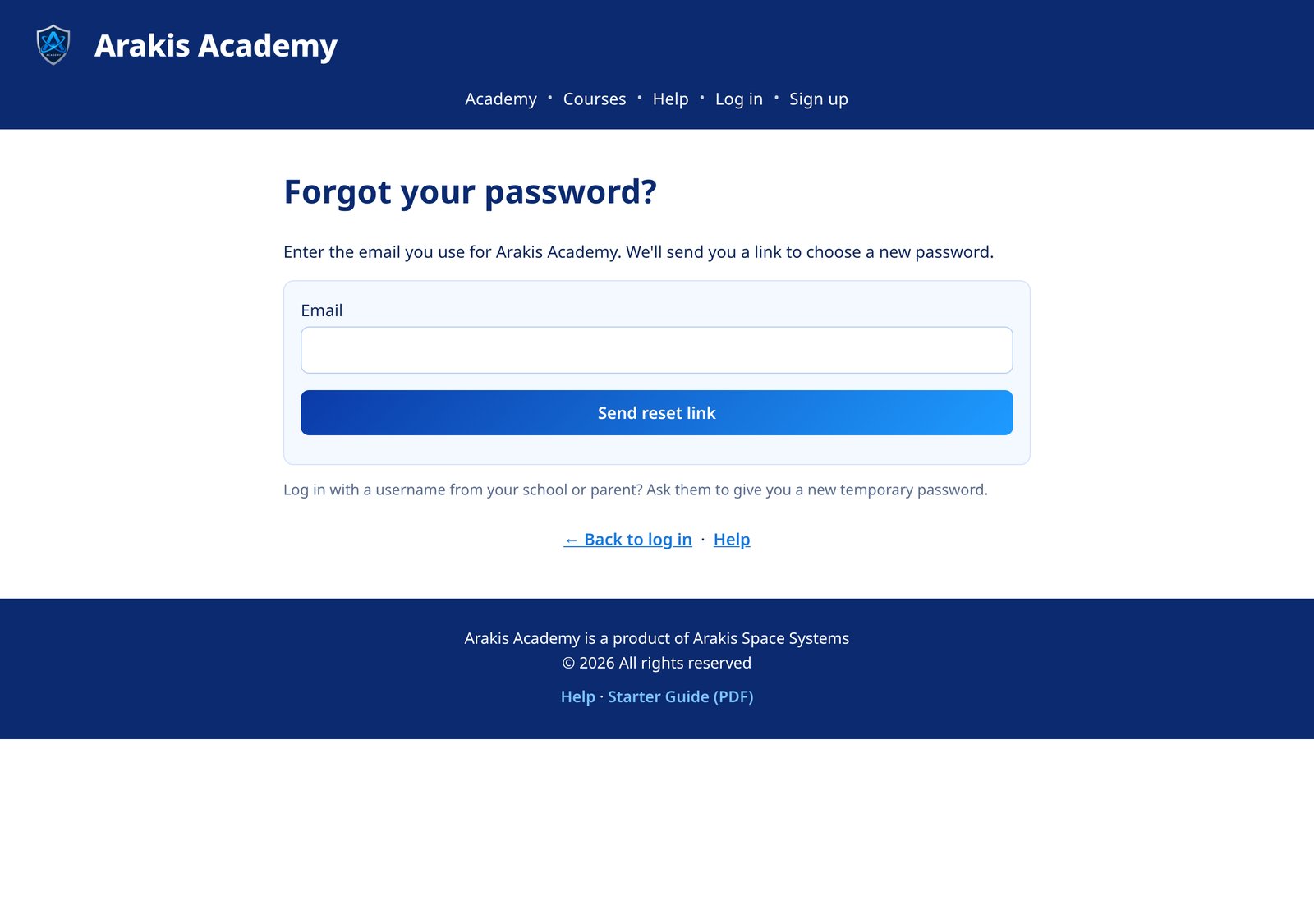
Forgot your password?
- On the log-in page, tap Forgot password?.
- Enter the email you use for Arakis Academy and tap Send reset link.
- If an account exists for that email, we send a reset link. Check your inbox and spam folder. The link works once and expires in 1 hour.
- Choose a new password of at least 8 characters. You will be signed out everywhere and can then log in with the new password.
The form always gives the same confirmation, whether or not an account exists for that email.
Log in with a username from your school or parent? Ask them to give you a new temporary password. They use Make a new temporary password on their school or family page. Forgot password? is for accounts that have an email.
Starting password (young learners)
If your school or parent created your account without an email, they will give you a username (for example chidi.4821) and a temporary password. Log in with that username. You will see Choose your own password: enter the starting password, then a new password of at least 8 characters. You must change it before you can continue.
Change your password later
On Your profile, under Your data, open Change password. Enter your current password and a new one (at least 8 characters, different from the current one). Accounts that use social sign-in have no password to change.
Installing the app
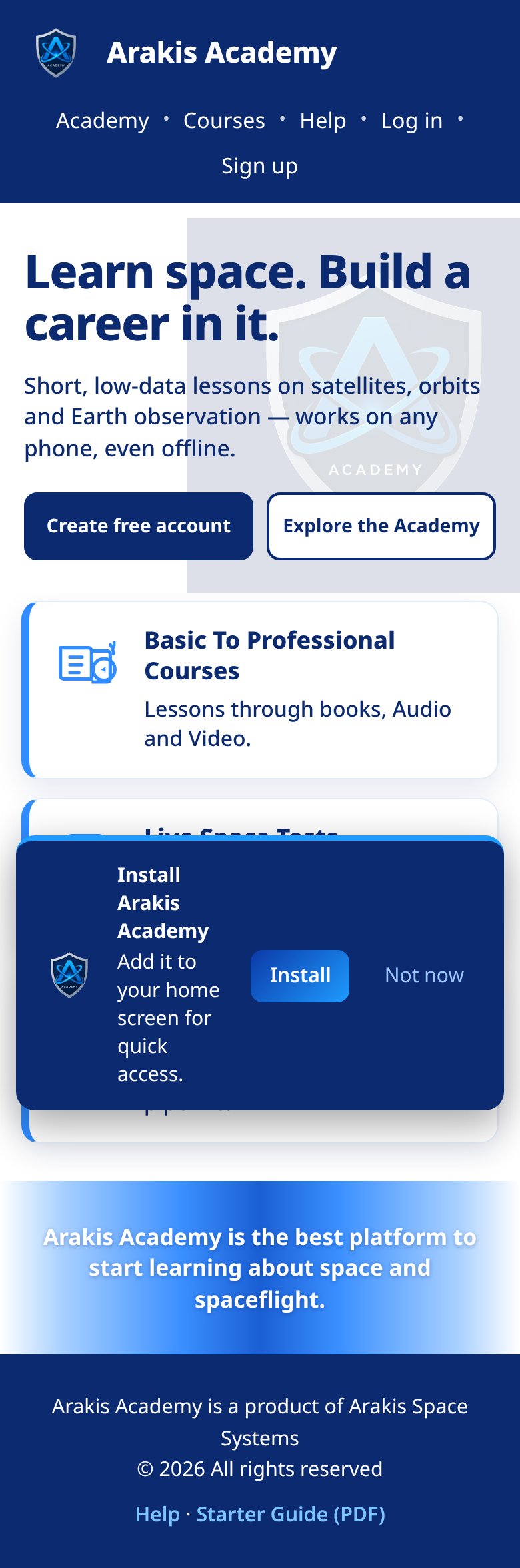
Arakis Academy can be installed as an app on your phone or computer for quick access, including when you are briefly offline. Your progress saves on the device and syncs when you are back online. A banner may appear at the bottom of the screen.
- On many Android phones and desktop browsers: when the banner says you can add it to your home screen, tap Install. If the banner instead asks you to use the browser menu, open that menu and choose Install app or Add to Home screen.
- On iPhone and iPad: tap Share, then Add to Home Screen.
You can dismiss the banner; it may appear again after about 12 hours if the app is not installed. Once it is installed, the banner no longer shows. If you go offline, the header may show offline — progress will sync later.
FAQ
- I am under 13. Can I sign up myself?
- No. The sign-up form says: ask your teacher or school to create your account. They can add you with a username if you do not have an email.
- What is an Account ID?
- A unique code for your account, like
ARA-XXXXXX. It is on your dashboard and profile. Use it when someone pays for you, when a school or parent links your existing account, or when a teacher asks to join a school (the School ID is the school owner's Account ID). - When do I have to pay?
- The first two chapters of each paid book are free, including their tests and pages. From the next chapter (chapter 3 on a typical book) you need a yearly plan, a seat from a school or parent, or for someone to pay with your Account ID.
- The site says “Payments opening soon”. What does that mean?
- Online payments are not available at that moment, so nothing will be charged. You can still use the free preview and check Account IDs. Schools and parents who need full access can ask Arakis Academy to grant seats.
- I signed up as a teacher but I cannot create a class.
- First your school or the Arakis Academy team must approve you. Then a school must add you (or approve your School ID request). Until you belong to a school, you cannot create classes or see learners, even if your teacher account is approved.
- What is the pass mark?
- 70%. You can retake a test after you have read the chapter again.
- I finished the course but I have no certificate yet.
- Pass every test in the course. If the course page asks you to verify your email, do that so the certificate can be sent.
- I use a username and I forgot my password.
- Ask your school or parent to make a new temporary password. Forgot password? only works for accounts with an email.
- Does the Academy work offline?
- Yes, once you have opened material while online. Progress is stored on the device and syncs when you are online again. Installing the app makes this easier.
Arakis Academy Software Guide · Published by Arakis Space Systems